Source: Developing in the Windows Subsystem for Linux with Visual Studio Code
Installation #
To get started, you need to:
- Install the Windows Subsystem for Linux along with your preferred Linux distribution.Note: WSL 1 does have some known limitations for certain types of development. Also, extensions installed in Alpine Linux may not work due to
glibcdependencies in native source code inside the extension. See the Remote Development and Linux article for details. - Install Visual Studio Code on the Windows side (not in WSL).Note: When prompted to Select Additional Tasks during installation, be sure to check the Add to PATH option so you can easily open a folder in WSL using the
codecommand. - Install the WSL extension. If you plan to work with other remote extensions in VS Code, you may choose to install the Remote Development extension pack
Open a remote folder or workspace #
From the WSL terminal #
Opening a folder inside the Windows Subsystem for Linux in VS Code is very similar to opening up a Windows folder from the command prompt or PowerShell.
- Open a WSL terminal window (using the start menu item or by typing
wslfrom a command prompt / PowerShell). - Navigate to a folder you’d like to open in VS Code (including, but not limited to, Windows filesystem mounts like
/mnt/c) - Type
code .in the terminal. When doing this for the first time, you should see VS Code fetching components needed to run in WSL. This should only take a short while, and is only needed once.Note: If this command does not work, you may need to restart your terminal or you may not have added VS Code to your path when it was installed. - After a moment, a new VS Code window will appear, and you’ll see a notification that VS Code is opening the folder in WSL.
 VS Code will now continue to configure itself in WSL and keep you up to date as it makes progress.
 - Once finished, you now see a WSL indicator in the bottom left corner, and you’ll be able to use VS Code as you would normally!
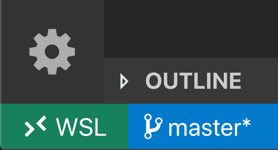
That’s it! Any VS Code operations you perform in this window will be executed in the WSL environment, everything from editing and file operations, to debugging, using terminals, and more.


